
Author: RingCentral
Monitoring live calls in the RingCentral app
Last Updated: August 15, 2023
RingCentral’sCall monitoring feature lets authorized users create Call monitoring groups to observe other extensions’ calls in real-time. The Heads-up display (HUD) lets you interrupt or take over calls on any extension in your Call monitoring groups.
Note:
-
Call monitoring is only supported in the RingCentral desktop and web app, not in the RingCentral mobile app.
Adding users who can monitor calls or whose calls can be monitored
To create and manage Call monitoring groups, you need permission to change Groups settings. If you need this permission, contact your company admin.
You have several setup options when creating Call monitoring groups:
-
One user can monitor many users’ calls.
-
Many users can monitor one user’s calls.
-
Many users can monitor many users’ calls.
-
Go to the Admin Portal and sign in.
-
ClickPhone Systemin the top menu.
-
Go toGroups > Call Monitoring.
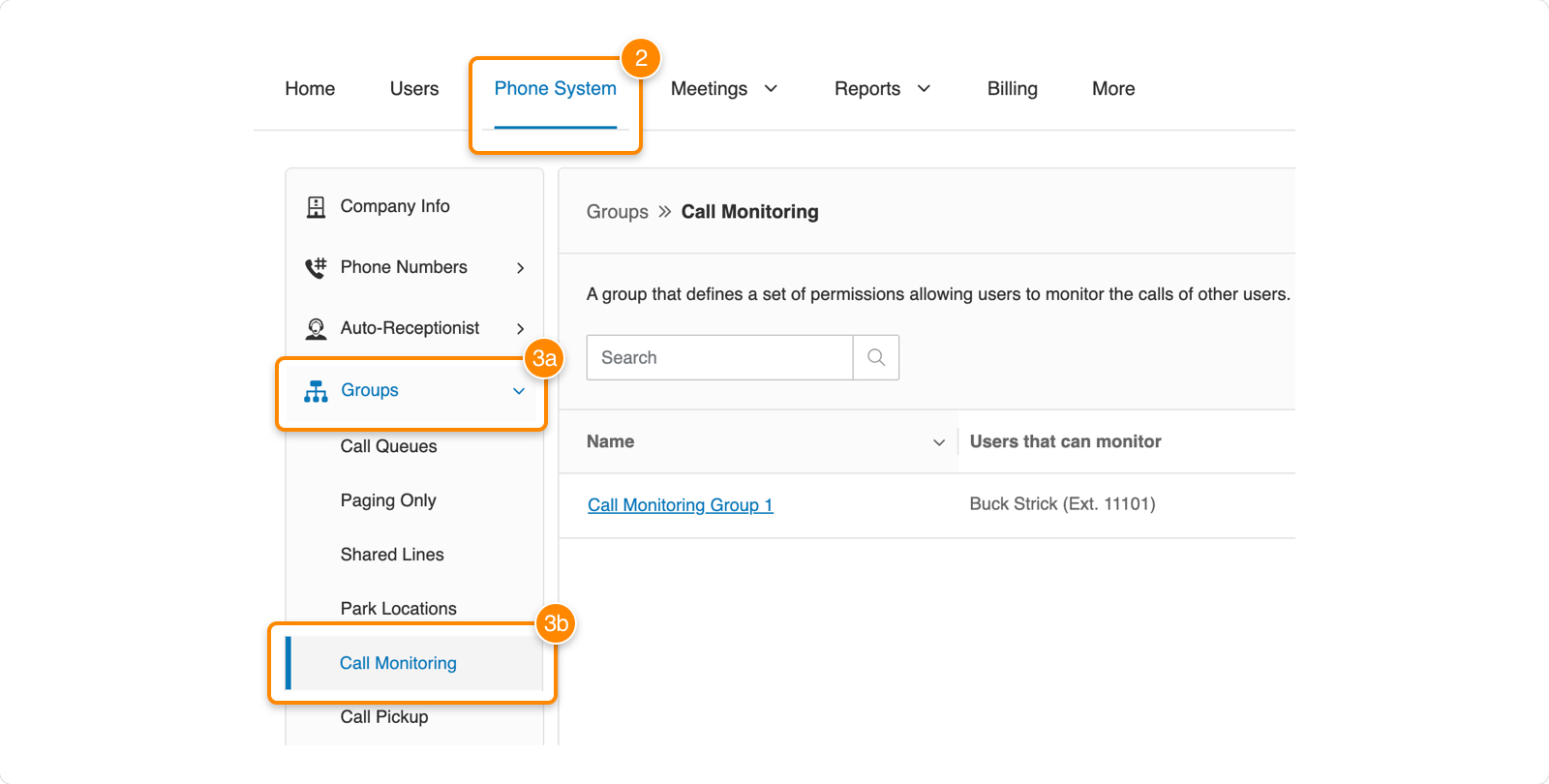
- Click
New Call Monitoring to the far right of Search.

- In the Define Group Name tab, name the group of extensions whose calls you’d like to monitor, then click Next

- In the Select users that can monitor tab, check the box next to the name of each user you’d like to give permission to monitor calls.
- If you’d like to select all users, check the box next to Name
- To search for users or filter by company department, use the search field.
- Once you’ve added users who can monitor calls, click Next.
- In the Select users that can be monitored tab, check the box next to the name of each user whose calls you’d like to be monitored by the users you selected in the previous step.
- If you’d like to select all users, check the box next to Name
- Click save.
- You’ll be returned to the Call Monitoring page, where you can see and make changes to your Call monitoring groups.
- To delete a Call monitoring group, click the three-dot More icon to the right of the Actions column, then click Delete
- When you click a group name, you’ll see:
- The Call Monitoring Details menu, where you can change the group’s name or delete the group.
- The Group Membersmenu, where you can add or remove users from the Can monitor and Can be monitored groups.

Monitoring calls
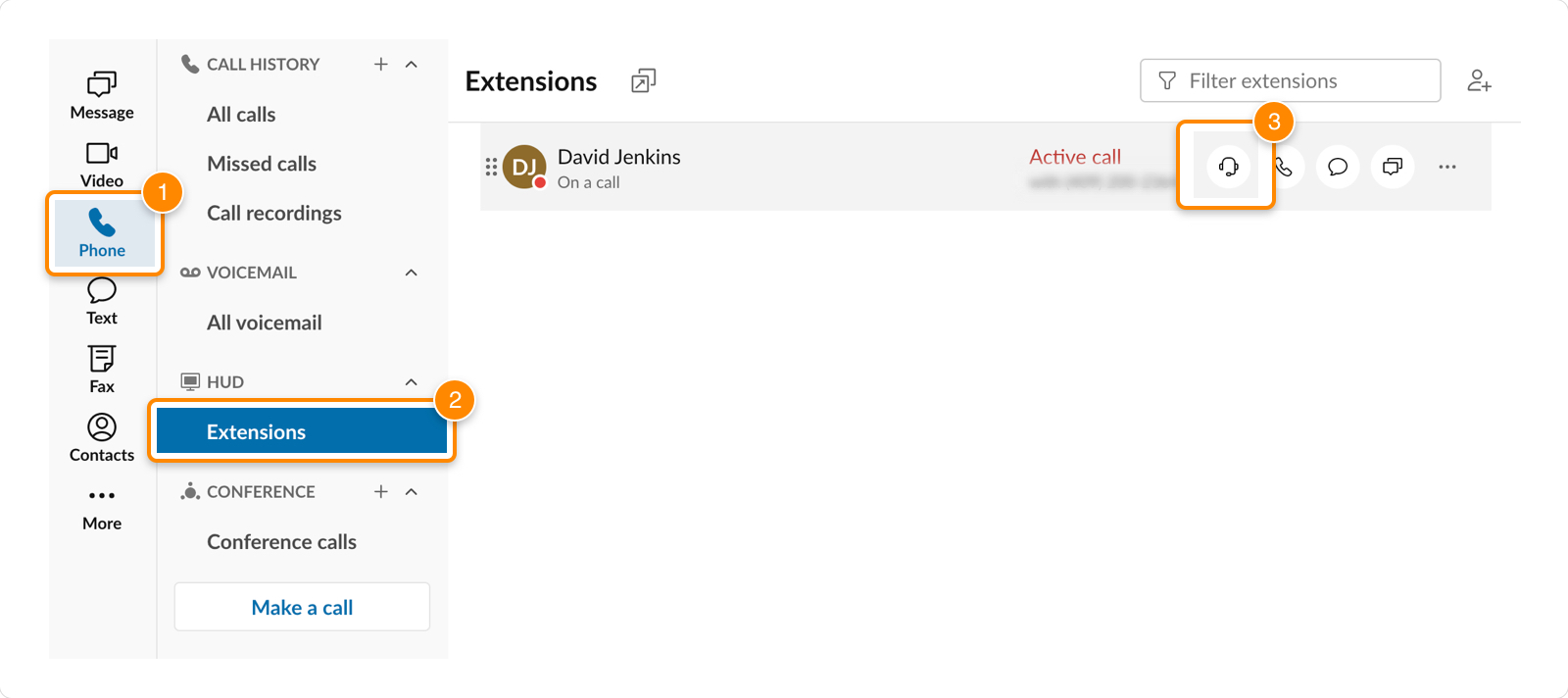
- In the RingCentral app on your desktop or web browser, click Phone in the left navigation bar.
- Under HUD, click Extensions. You may need to click the down arrow to open the HUD menu.
- If you’re using the new Phone experience, click the HUD tab.
-
If your HUD displays no extensions, you’ll need to add them. Learn how to add extensions to the HUD.
- Hover over the extension whose call you’d like to monitor, then click the Monitor active call button.
Note: No one on the call will be notified that it’s being monitored.
Call monitoring features
When monitoring a call, you can adjust specific settings, interrupt the call, or take it over.
-
Mute/Unmute: Turn your audio on or off.
-
Dialpad: Open the phone dialpad.
-
Audio: Turn call audio on or off.
-
Whisper: Talk to the extension you’re monitoring. No one else on the call will hear you.
-
Barge: Enter the call so all parties can hear you.
-
Take over: Gain control of the call by disconnecting the extension you’re monitoring.

Comments
0 comments
Please sign in to leave a comment.